
Start before the photography exists
Create believable launch and pre-sales material while the building is still being designed, approved or constructed.
Atreum for property developers
Use the IFC or plans your project already produces. Review the building in the browser, place it on its real site, test materials and daylight, furnish the important spaces and create the images your sales, planning and investment conversations need.
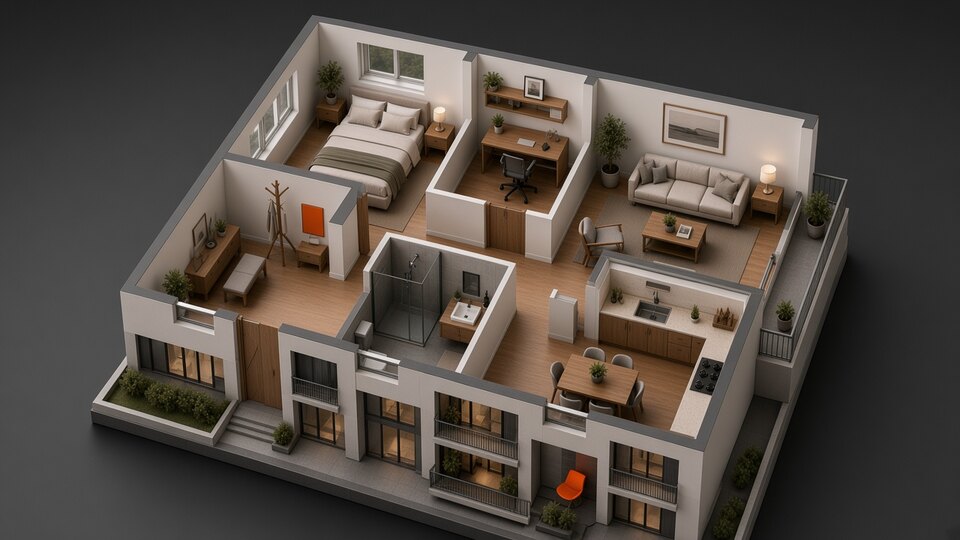
Stop rebuilding the same project
A development team often has detailed building information long before it has images that buyers, investors or neighbours can understand. Traditional visualization starts another brief, another model and another round of coordination.
Atreum keeps the source, spatial review, visual design and final imagery in one browser workflow. As the project evolves, return to saved cameras, adjust what changed and produce the next view without losing the building behind it.
One source, one connected workflow
Open the model, prepare the story and create the output without passing the project through a separate visualization pipeline.
Import an IFC building with its storeys, units, rooms, element groups, colours and phases, or begin from early plan drawings.
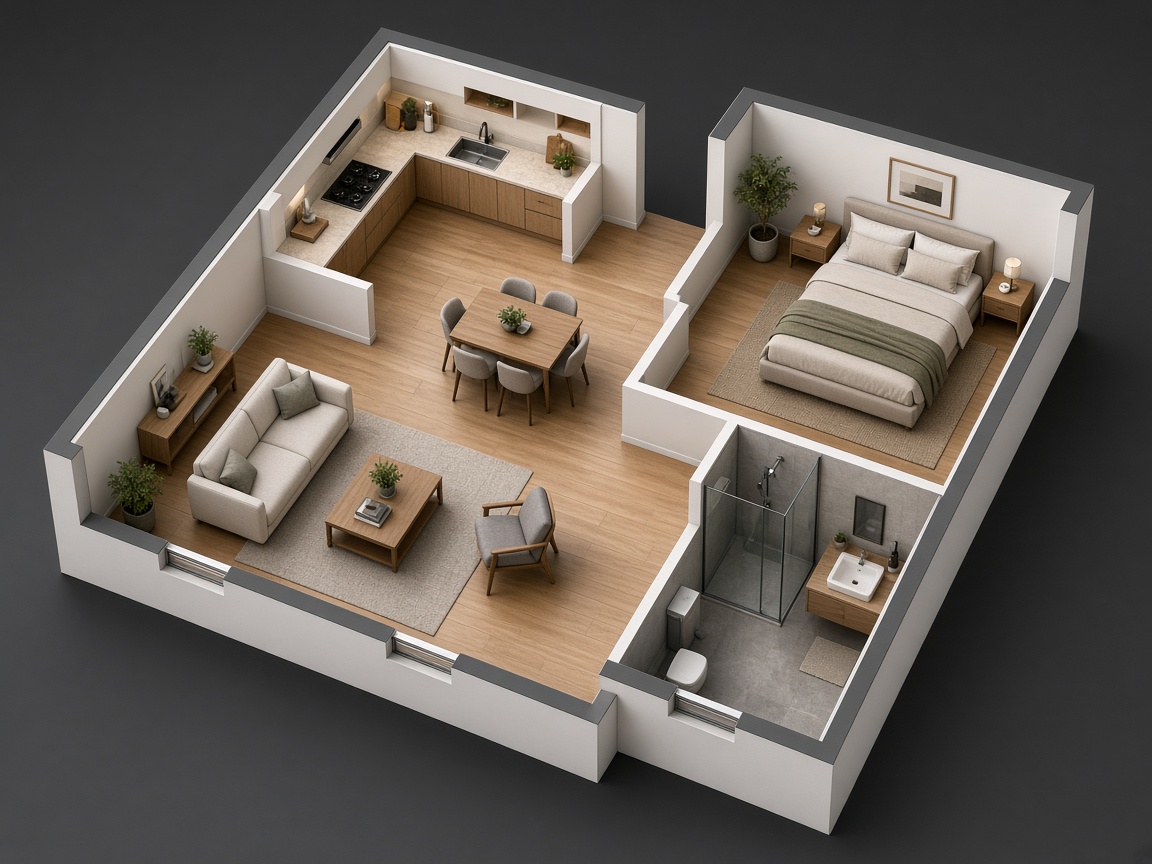
Inspect the hierarchy, isolate a floor or unit, hide unfinished systems, create sections and save the camera angles stakeholders need.
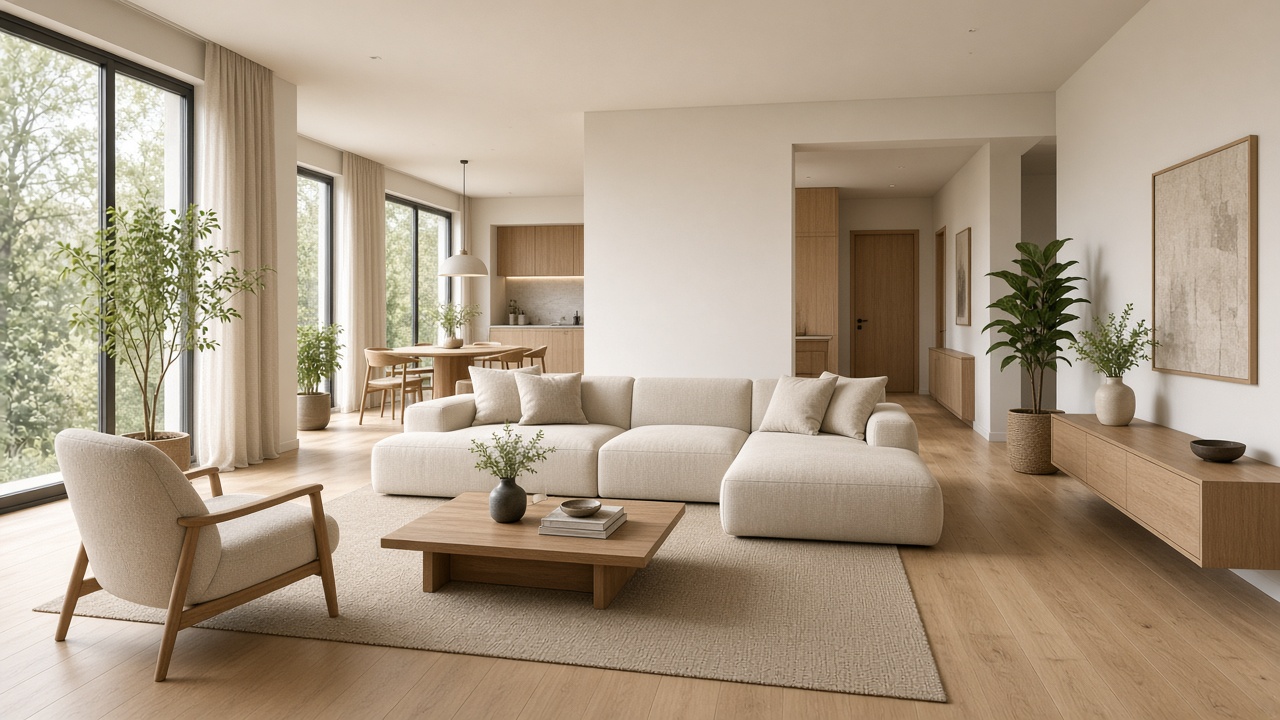
Apply surfaces, furnish key interiors and describe terraces, landscaping or design objects directly to the design assistant.
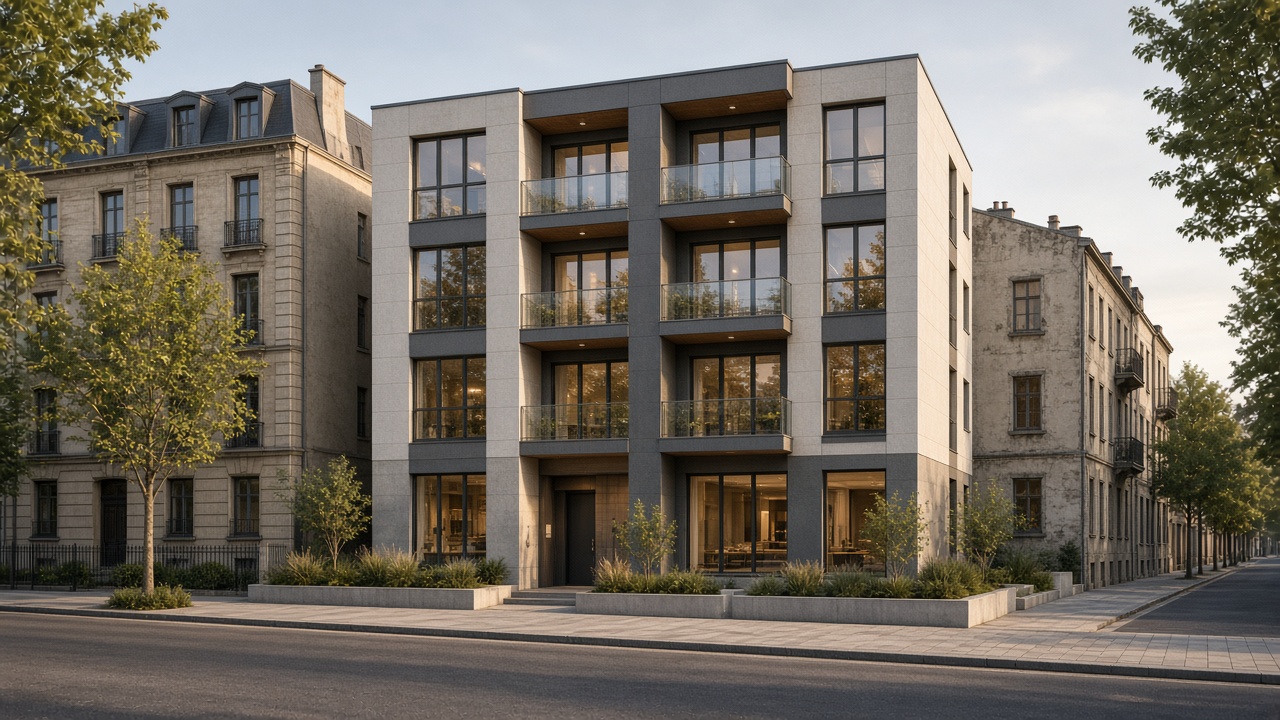
Generate interior and exterior images, restore approved views and keep model exports for agencies, sales teams and future revisions.
Built for an evolving project
Keep marketing, stakeholder communication and model review closer to the same source of truth.
Create believable launch and pre-sales material while the building is still being designed, approved or constructed.
Saved views, model versions and adjustable scene decisions make a changed facade or apartment easier to communicate again.
Move from a building overview to a floor, unit, room or street-level view without commissioning a new source model for each.
The model remains useful
The IFC is not treated as a disposable upload. Its spatial hierarchy remains navigable while you prepare clearer sections, furnished rooms, facade studies and final presentation views.
Navigate floors, units, rooms, elements, assemblies, phases and named materials without flattening the building.
Hide an element or a whole category, isolate a place and use a section box or cut height to reveal what matters.
Use realistic library surfaces or direct the interior and exterior finish with project-specific material notes.
Describe terraces, planting, furnishings or architectural objects and let the design assistant build them into the scene.
Place the building at its coordinates, align it to true north and switch surrounding terrain and buildings on when needed.
Save camera states and versions, capture views, create presentation images and download GLB or OBJ for the next tool.
Not a building on an empty plane
Position the model at the project address, align the footprint and use surrounding buildings, streets, terrain and real sunlight to make massing and exterior images feel connected to the actual place.
Geometry becomes communication
Create broad exterior context, furnished interior atmosphere and clear spatial overviews from one connected building source.
Illustrative visualization examples. Results depend on the source file, selected camera and design direction.
Useful across the development cycle
Use the same prepared project for internal decisions, approvals, sales material and later revisions.
Bring the file you already have
Upload the IFC or plans, open the building in a private workspace and turn the views that matter into finished visual communication.